
This post reviews 11 top SSD cloning software for Windows, including MiniTool ShadowMaker, DiskGenius, and EaseUS Disk Copy, covering features, pros, cons of each software, and our first-hand experience.
What Is SSD Cloning Software
SSD cloning software helps create an exact copy of a hard disk drive (HDD) or solid-state drive (SSD). It copies the operating system, settings, applications, and data from an old drive to a new one.
When migrating from an HDD to a faster SSD or upgrading to a larger drive, a cloning tool is often the most efficient option. It enables a seamless system migration without reinstalling Windows and apps.
How to Choose Excellent SSD Cloning Software for Windows
It is important to choose the right cloning software for a successful system migration and disk cloning. Reliable tools can minimize data loss, prevent boot failures, and save time.
When choosing a cloning tool, consider core features, ease of use, and reliability.
Essential Functionalities
The best SSD cloning software should offer key features, including:
- OS migration: Migrates operating systems from slower HDDs to faster SSDs. The software should transfer Windows system files, hidden partitions, and configurations, ensuring the new SSD is immediately bootable.
- Full disk and partition cloning: Clones an entire hard drive to another hard drive or clone specific partitions to a new drive.
- Partition management/resizing: Supports resizing partitions on the destination disk when cloning to fit a smaller or larger drive.
- SSD optimization: Supports 4K alignment for SSDs, ensuring the maximum drive performance and lifespan.
- Hot cloning/living cloning: Creates an exact, bootable replica of a hard drive while Windows is actively running, allowing for continued work without system reboots or downtime.
- Sector-by-sector cloning: Copies every sector, including used, empty, and bad, from a source drive to a target drive to ensure an exact, byte-for-byte replica.
- Bootable media creation: Makes a bootable USB drive, or CD/DVD, or ISO file based on WinPE (Windows Preinstallation Environment), enabling cloning even if the operating system fails to start up.
Ease of Use
The best SSD cloning software should offer a wizard-driven or intuitive interface designed for beginners. It enables system migration or disk cloning without advanced technical skills.
For example, it follows the “select source, select destination, and start clone” format.
Compatibility
When selecting a cloning tool, ensure it offers broad compatibility:
- Windows versions: Compatible with Windows 11/10 and Windows Server 2025/2022.
- File system support: Includes NTFS, FAT32, exFAT, ext2/3/4, and ReFS.
- GPT/MBR: Supports MBR/GPT partition schemes, allowing cloning from MBR to MBR and GPT to GPT, or converting MBR to GPT during the cloning process.
- Hardware compatibility: Compatible with all manufacturers, including Samsung, Western Digital, Kingston, SanDisk, Crucial, and other major brands.
In light of the above, we list the 11 best SSD cloning software below.
#1. MiniTool ShadowMaker (User-Centric Cloning Wizard)
Designed for Windows, MiniTool ShadowMaker is an all-in-one solution for disk imaging backup and disk cloning. It supports SSD upgrades and data migration with an intuitive interface.
It copies the operating system, applications, and data to a new disk. After cloning, the target drive is bootable without additional configuration.
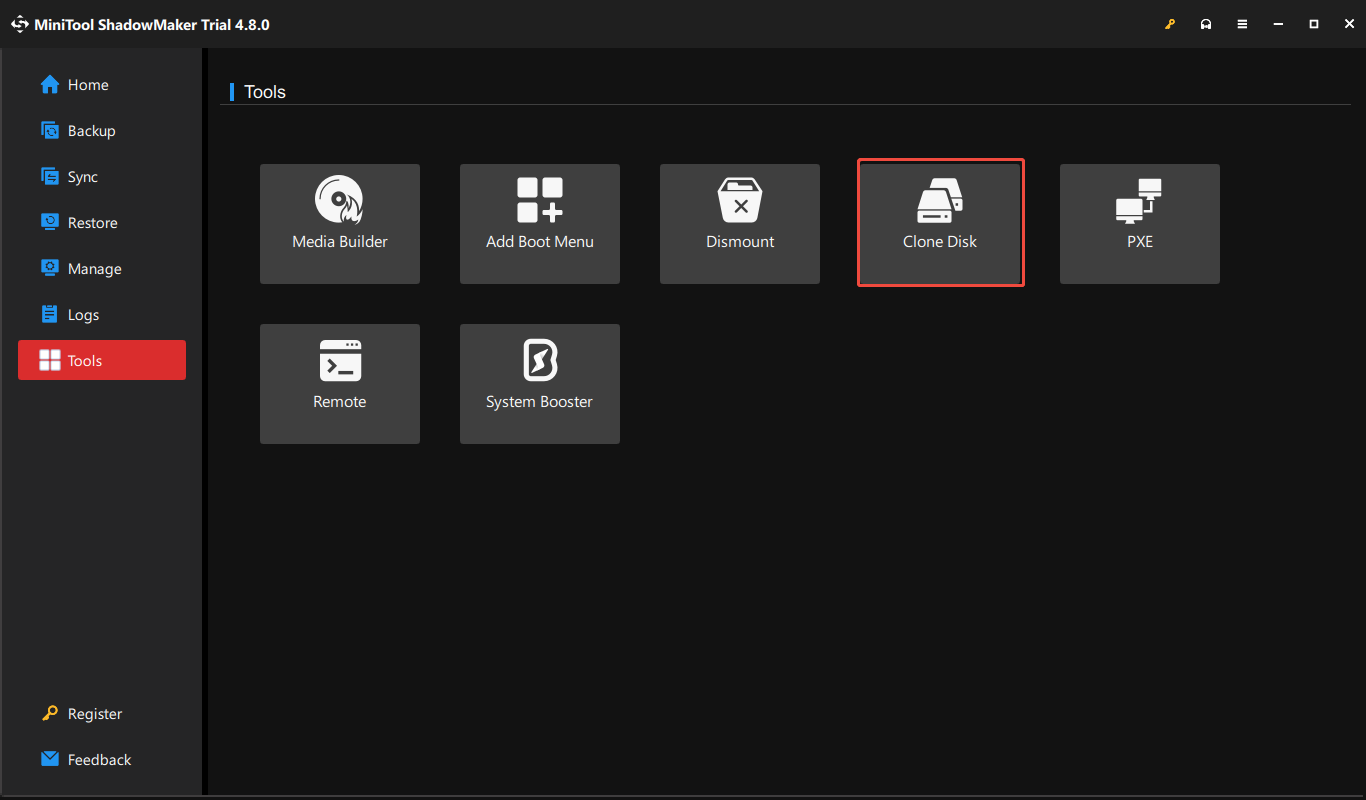
Key Features of MiniTool ShadowMaker
- Disk migration: Supports cloning both system and data disks with its Clone Disk feature, making it ideal for migrating from HDDs to SSDs or upgrading to larger drives.
- Two cloning modes: Supports sector-by-sector cloning and used-sector cloning, balancing accuracy and speed.
- Smaller SSD cloning: Clones a larger HDD to a smaller SSD, provided the SSD has enough space to hold the source data.
- Target disk ID: Uses a new disk ID for the target drive by default, which avoids disk signature collision when both drives are connected simultaneously; Allows you to maintain the same disk ID as the source drive for a direct drive replacement.
- Living cloning: Performs the cloning process without restarting a computer.
Pros and Cons
| Pros | Cons |
| 1. Simple, user-friendly interface. 2. Small to large drive cloning support. 3. WinPE-based rescue media. 4. Sector-by-sector copy. 5. 30-day free trial. | 1. It does not offer a separate system migration or partition-only cloning feature, as cloning is performed at the disk level. 2. A payment for system disk cloning is required. 3. Advanced features are not supported, such as 4K alignment and partition resizing during cloning. |
Why Do We Recommend It
MiniTool ShadowMaker is suitable for beginners due to its intuitive interface and straightforward cloning process. It allows you to clone a disk efficiently for system migration and storage upgrades.
Available Editions
- MiniTool ShadowMaker Free/Pro/Pro Ultimate: Used for personal users, compatible with Windows 7/8/8.1/10/11.
- MiniTool ShadowMaker Business Standard/Business Deluxe: Designed for business users, supporting Windows Server (including Server 2025), non-server OS, and workstations.
Personal Experience with MiniTool ShadowMaker
The download and installation process is quick and straightforward. After launching the software, I found the interface clean and well-organized, making the cloning process easy to follow.
However, when I attempted to migrate a system disk, a prompt appeared indicating that this feature requires registration. I needed to activate the software before proceeding, which interrupted the workflow.
#2. Macrium Reflect (High-End System Migration Toolkit)
Macrium Reflect is a comprehensive backup and disk cloning software for Windows. It functions as a high-end system migration toolkit, specifically designed to clone drives for upgrades to ensure optimal performance.
Thanks to the Reflect X technology launched in October 2024, this software is significantly improved in speed, security, and flexibility, compared to its predecessor, Reflect 8.
Macrium Reflect is widely regarded as one of the most reliable SSD cloning solutions for its performance, intelligent sector copying, and user-friendly interface.
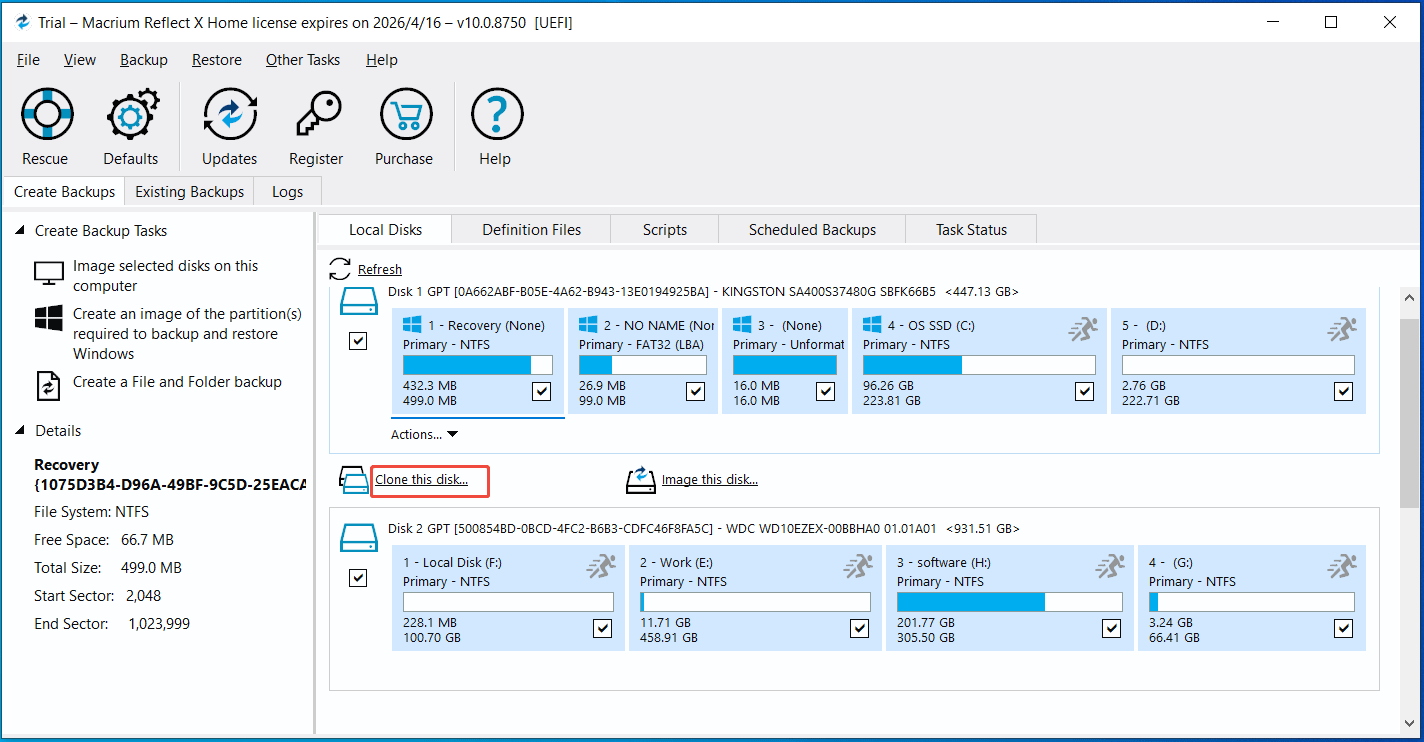
Key Features of Macrium Reflect
- Intelligent sector copy: Copies the sectors that are in use on the source drive, providing a fast cloning process.
- Forensic sector copy: Copies all sectors from the source drive, whether they are in use or not, allowing for 1:1 drive cloning, which will take longer to complete the process.
- File system verification: Verifies the integrity of the source file system (FAT32 and NTFS) before a disk copy.
- SSD TRIM: Provides an option to enable SSD TRIM to flag unused blocks on the drive to increase its lifetime and performance. This helps the drive to skip the read-modify-write cycle and slow erase processes.
- Rapid delta clone (RDP): Only copies the differences between the source and target (for NTFS drives), acting as an incremental cloning method to reduce cloning times. This makes the tool an efficient solution for scenarios requiring frequent, fast updates to a cloned disk or partition.
- Living cloning: Clones the system, apps, and data when Windows is running.
- Flexible partition management: Supports shrinking or extending partitions to fit the target disk when cloning.
- Scheduled clone: Schedules cloning tasks automatically, making it a primary option for maintaining a hot-swappable duplicate of a boot drive, minimizing downtime after disasters.
Pros and Cons
| Pros | Cons |
| 1. Highly reliable. 2. Rapid migration. 3. Flexible partition adjustment during the cloning process. 4. Rescue media builder. 5. Intelligent Sector Copy. | 1. The X version has shifted to a subscription-only mode, rather than perpetual licenses. 2. It is complex for novices even though the interface is intuitive. 3. It only offers an option to clone a disk, no distinct system and partition cloning options. 4. Macrium Reflect cloning error 9 often occurs. |
Why Do We Recommend It
Macrium Reflect is reliable, high-performance cloning software that provides advanced features such as Intelligent Sector Copy to create an exact 1:1 copy of drives.
Its rapid delta clone can copy only modified data blocks, significantly speeding up subsequent disk clones. Even though the system is running, you can perform the living cloning without disrupting your workflow.
To sum up, Macrium Reflect delivers a seamless system migration to a new SSD. For non-technical users, it is considered accessible.
Available Editions
Macrium Reflect provides several editions for various users:
- Macrium Reflect X Home: Designed for personal users, with a 30-day free trial.
- Macrium Reflect Workstation: Designed for organizations that need to protect only a handful of critical machines.
- Macrium Reflect X Server: Designed for business-critical servers in commercial environments.
- Macrium Reflect LTSC (Long Term Service Channel): Specifically engineered for mission-critical environments.
Personal Experience with Macrium Reflect
When downloading this software from its official website, the process requires several steps:
1. It requires me to sign in and follow the on-screen instructions to prepare for the download.
2. I need to click the download button to get the installer.
While running the executable file to initiate the setup, an Email address is required. Additionally, a system restart is also necessary after the setup.
After launching, it offers various theme options, enabling me to change the light mode to the dark mode (like blue/light gray/high contrast orange) or Windows color theme.
During cloning, this tool can successfully handle complex partition resizing, especially when cloning to a smaller drive.
#3. MiniTool Partition Wizard (All-in-One Management Tool)
MiniTool Partition Wizard is a comprehensive partition manager designed for partition and disk management. It allows you to resize partitions, convert between MBR and GPT, clone disks, migrate HDDs to SSDs, and so on.
Due to the user-friendly interface, reliability, and flexibility, this program is an excellent choice when upgrading to larger drives or SSDs. It can easily create a bootable copy of an HDD or SSD, eliminating the need to reinstall Windows.
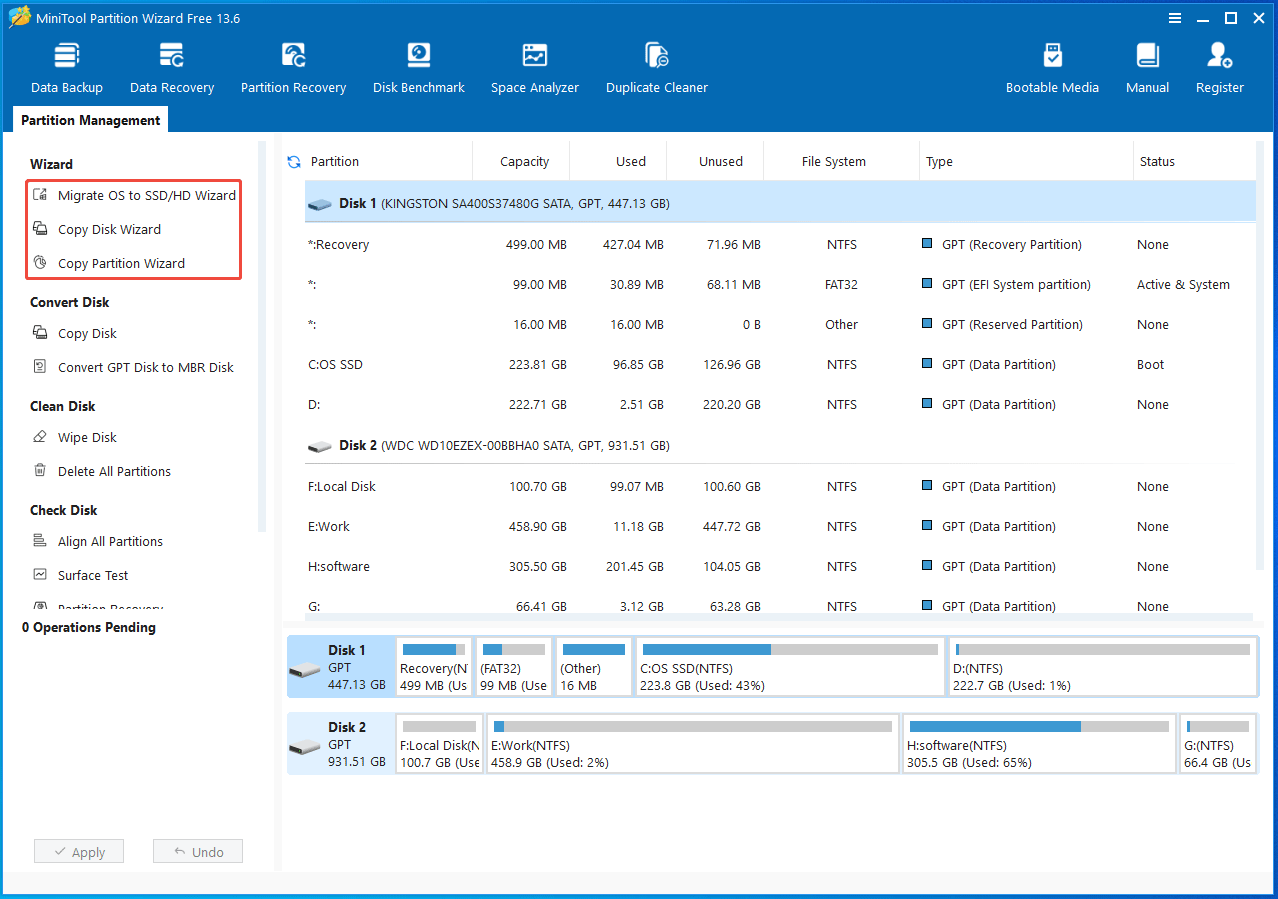
Key Features of MiniTool Partition Wizard
- Disk cloning: Copies the entire hard drive to another drive, including all data, system files, settings, and apps.
- Partition cloning: Copies a partition to an unallocated space, primarily used to transfer files stored in one partition, saving much time compared to copying and pasting files.
- System migration: Provides options to either copy the entire system disk or migrate only system-related partitions with the Migrate OS to SSD/HD Wizard.
- Automatic resizing: Automatically resizes source partitions proportionally to fill the target drive via the Fit partitions to entire disk option. This ensures no unallocated space is left on the larger drive when cloning a smaller drive.
- Partition alignment: Aligns partitions to 1MB for SSDs and Advanced Format disks to improve the drive performance.
- GPT support: Supports MBR-to-GPT conversion during cloning, ensuring GPT-to-GPT or MBR-to-GPT cloning. The Use GUID Partition Table for the target disk option helps convert the target disk to GPT.
Pros and Cons
| Pros | Cons |
| 1. A clear and well-structured interface. 2. Reliable disk cloning and effective OS migration. 3. High flexibility (automatic partition resizing and GPT conversion during cloning). 4. Built-in bootable media builder, creating a bootable USB drive or CD/DVD. 5. An operation queue system where changes are not applied until clicking Apply, allowing you to review and undo actions. | 1. The free edition is limited and requires a paid license for system migration and system disk cloning. 2. It doesn’t support sector-by-sector copy. 3. A system restart may be required in certain cloning scenarios. |
Why Do We Recommend It
MiniTool Partition Wizard stands out for its ease of use, step-by-step guides, and robust cloning features.
Its intuitive wizards simplify complex cloning into guided processes, making it accessible for non-technical users. This can help minimize the risk of use errors.
Moreover, its automatic resizing, GPT support, and SSD partition alignment can accommodate various demands, effectively improving the workflow.
Available Editions
MiniTool Partition Wizard offers several editions for home and business users.
- Free Edition: Used for home users, requiring paid upgrades for advanced features like system migration in Windows 11/10/8.1/8/7.
- Pro/Pro Platinum/Pro Ultimate: Used for home users, supporting system migration, and MBR-to-GPT conversion during cloning in Windows 11/10/8.1/8/7.
- Server/Enterprise/Technical: Designed for Windows Server systems, including 2008/2012/2016/2019/2022/2025 all editions.
Learn the detailed edition comparison.
Personal Experience with MiniTool Partition Wizard
Downloading MiniTool Partition Wizard from the official website was simple and fast. I could easily complete the installation by following the on-screen instructions.
After launching this SSD cloning tool, I found that the main interface includes a wide range of features, such as Copy Disk. Each section is intuitive and easy to navigate.
When I started to set up system disk cloning, the software prompted me to upgrade, as this feature is not available in the free edition. I needed to register the software before proceeding, which interrupted the cloning setup.
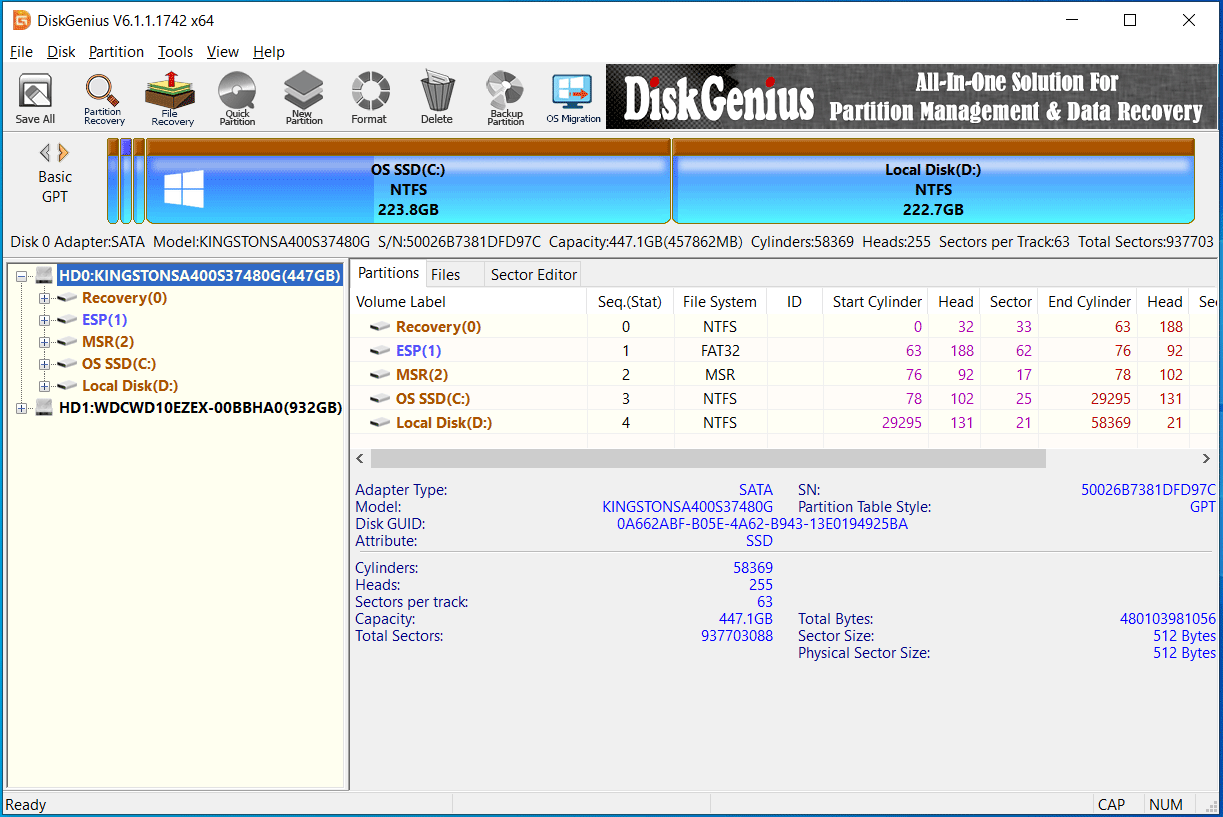
#4. DiskGenius (Professional-Grade Disk Replicator)
DiskGenius is a comprehensive utility for Windows, delivering all-in-one solutions for data recovery, partition management, backup & recovery, and disk maintenance.
For SSD cloning, this program functions as a professional-grade disk replicator, offering solid performance.
Its free edition provides reliable, full cloning functionality, handling system migration and system disk cloning, whereas many competitors have moved toward paid-only models.
Key Features of DiskGenius
- System migration: Migrates Windows to a single disk or multiple target disks at the same time; Offers options to configure the boot sequence for UEFI-based system.
- Disk copy: Copies all partitions and data from a hard drive to one or more target disks; Provides three copy modes: copying all sectors, copying only valid sectors, and copying all files; Copies all sectors for unsupported file systems.
- Partition copy: Moves the content of one partition to another partition with 3 modes, including copying all sectors, valid sectors, and all files.
- Flexible partition resizing: Supports cloning a larger drive to a smaller SSD by adjusting partition sizes on the target disk; Performs 4K alignment to optimize SSD performance during cloning.
- Hot migration support: Migrates the system without requiring a restart with the VSS (Microsoft Volume Shadow Copy Service) technology; Offers an option to reboot to WinPE (Windows Preinstallation Environment) for the migration.
Pros and Cons
| Pros | Cons |
| 1. Full cloning functionality without hidden costs in Free Edition. 2. Flexible cloning modes, such as living cloning and sector-by-sector copy. 3. Smart partition resizing. 4. Simultaneous cloning to multiple disks. 5. Automatic 4K alignment for SSDs. 6. Automatic boot sequence configuration after migration. | 1. Complicated layout. 2. Old interface design. 3. Boot issues, often requiring BIOS adjustments. |
Why Do We Recommend It
DiskGenius stands out for its powerful free edition, which supports system migration and disk cloning, while many competitors require paid licenses for these features. It is particularly useful for migrating Windows from larger HDDs to smaller SSDs.
Available Editions
There are two editions, compatible with Windows 11, 10, 8, 7, Vista, and XP, and Server 2022.
- DiskGenius Free Edition: Used for both individuals and organizations seeking efficient disk management.
- DiskGenius Professional Edition: Used for home users, small business owners, or IT professionals.
Personal Experience with DiskGenius
The download and installation process is straightforward.
After launching this software, the interface contains dense menus and technical information. While functional, it may feel overwhelming for beginners, and the overall design appears less modern compared to other tools.
I spend much time finding the Clone Disk feature, which is under Tools. The OS Migration feature is conspicuous, located in the top menu.
The cloning features are comprehensive, enabling me to complete system migration for free. It also supports cloning to multiple targe disks simultaneously, which is useful in certain scenarios.
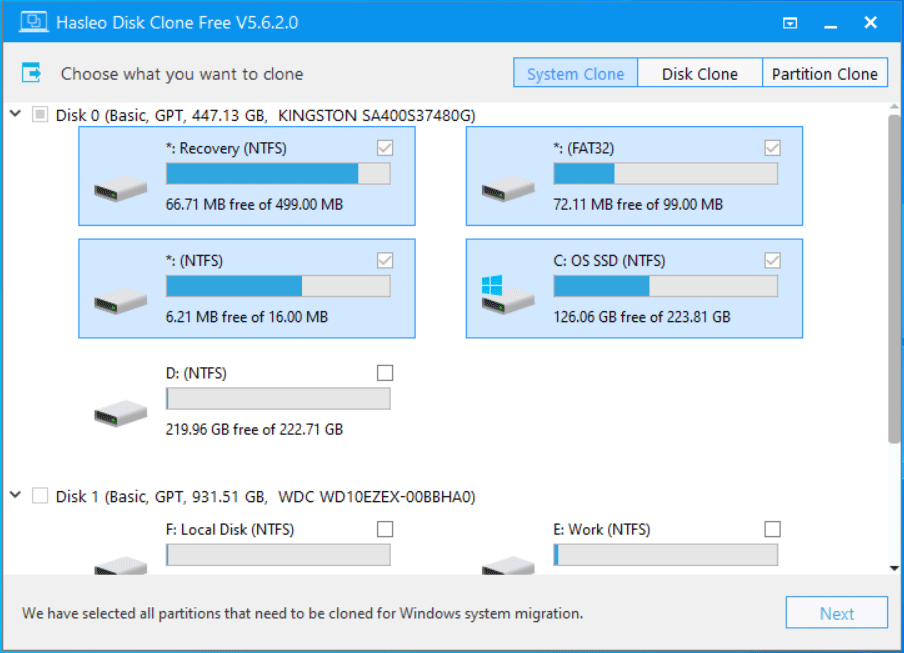
#5. Hasleo Disk Clone (Functional Migration Utility)
Hasleo Disk Clone is a functional migration utility with a free edition, designed for both Windows PC and Windows Servers. It supports system, disk, and partition cloning with a range of practical features.
Key Features of Hasleo Disk Clone
- Comprehensive cloning modes: Migrates Windows to a new HDD or SSD, clones one disk to another, and copies a specific partition to another.
- Delta clone: Copies only changed data blocks to reduce cloning time, which is available for partition cloning.
- MBR and GPT conversion: Converts MBR to GPT or GPT to MBR during cloning.
- Partition adjustment: Resizes, relocates, or rearranges partitions on the target drive.
- Multiple alignment modes: Supports 4K and 1M alignment, ensuring optimal performance for modern SSDs.
- Sector-by-sector cloning: Performs sector-by-sector cloning, copying all sectors including unused ones.
Pros and Cons
| Pros | Cons |
| 1. User-friendly interface. 2. Offers a free edition with full cloning functionality, no hidden costs. 3. Delivers fast cloning speed due to a deeply optimized file system cloning algorithm. 4. Supports Delta Clone. | 1. Delta Clone is limited to NTFS partitions. 2. Design is dated. |
Why Do We Recommend It
In terms of free disk cloning software, Hasleo Disk Clone is a notable option. Its offers all-in-one cloning functionality, and there are fewer feature limitations in the free edition compared to many competitors.
Additionally, advanced features such as SSD optimization, MBR/GPT conversion, and partition resizing make it a practical option for migrating a system or cloning a disk to an SSD.
Available Editions
Hasleo Disk Clone has three editions:
- Free: Designed for home users, supporting Windows 11/10/8/7/Vista (x86/x64).
- Professional: Designed for home office & business, supporting Windows Vista/Server 2008 or later on X86/X64/ARM64 processors.
- Enterprise: Designed for business users, supporting Windows Vista/Server 2008 or later that run on X86/X64/ARM64 processors.
Personal Experience with Hasleo Disk Clone
I download and install Hasleo Disk Clone quickly, with just a few clicks.
Its main interface is simple, allowing me to select the source and target for cloning easily. By following the on-screen instructions, I was able to perform disk cloning without issues.
The software also supports partition resizing and SSD optimization, which helps improve drive performance. Overall, it meets my needs for system migration, disk cloning, and partition copy.
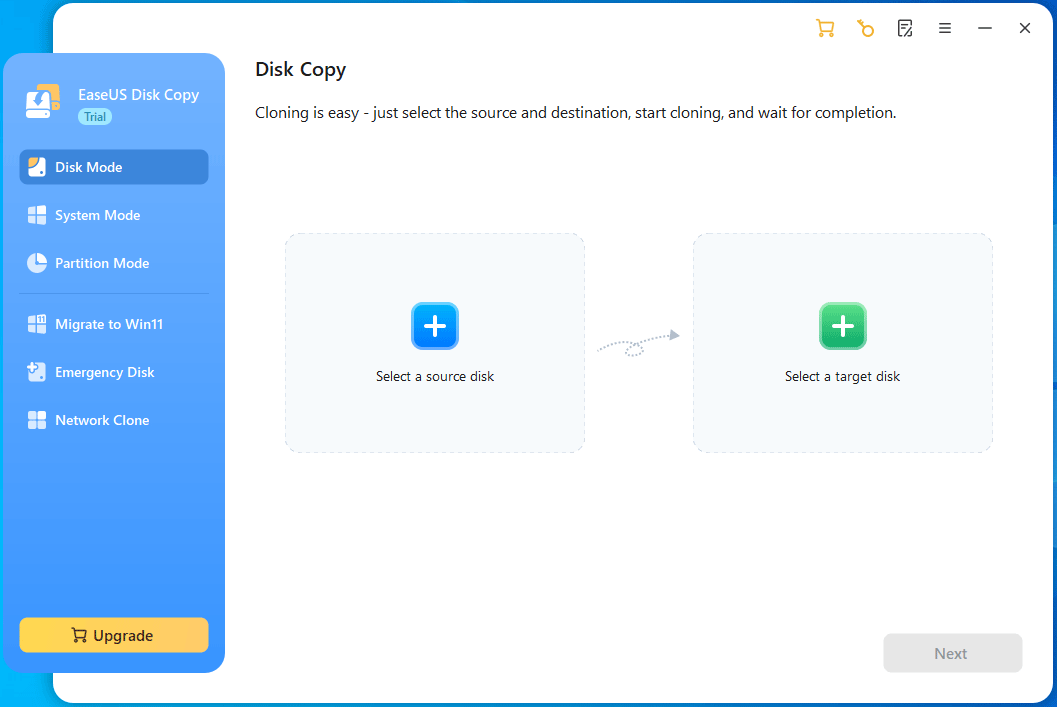
#6. EaseUS Disk Copy (Comprehensive Feature Suite)
EaseUS Disk Copy provides a comprehensive feature suite, specially designed for hard drive cloning, storage upgrade, and system migration.
With advanced features, it offers a secure, smooth, and efficient solution to transfer data during cloning, without losing data.
Key Features of EaseUS Disk Copy
- Disk/partition cloning: Copies an entire drive or a specific partition to another drive.
- System migration: Migrates Windows from HDD to SSD for optimal PC performance.
- Various disk layout options: Supports intelligently resizing the layout on the target disk via the Autofit the disk option, which is ideal for cloning a smaller drive to a larger one; Creates a 1-to-1 copy of the source drive via Copy as the source; Allows for manual partition resizing via Edit disk layout.
- Sector-by-sector copy: Copies all sectors, including blank or bad sectors, ensuring an exact copy of the source disk.
- Automatic 4K alignment: Improves the drive performance, especially for SSDs.
- Migrate to Windows 11: Clones the existing hard drive to a new disk while upgrading the system to Windows 11.
Pros and Cons
| Pros | Cons |
| 1. Intuitive interface for easy cloning. 2. Automatic partition resizing to fit a smaller target drive. 3. Emergency bootable disk creation. 4. 4K alignment support for SSDs. 5. Multiple copy modes, including migration to Windows 11. | 1. Trial version requires activation for full cloning functionality. 2. Higher cost than competitors. |
Why Do We Recommend It
EaseUS Disk Copy is a practical tool for cloning an HDD to an SSD. Its simplicity and automated features can handle various disk cloning and system migration tasks. The cloning process is smooth and secure, maintaining the bootable status of the new drive.
What’s more, it supports creating a WinPE-based bootable USB, CD/DVD, or ISO to clone your data safely when the system is failing.
Available Editions
EaseUS Disk Copy has three editions:
- Pro: Designed for home users, supporting Windows 11/10/8/8.1/7/Vista/XP.
- Technical: Designed for business users, one license for multiple computers; supporting Windows 11/10/8/8.1/7/Vista/XP and Windows Server 2008/2012/2016/2019/2022.
- Server: Designed for IT administrators to clone one hard drive to 100+ devices at the same time.
Personal Experience with EaseUS Disk Copy
When downloading this cloning tool, a pop-up prompts me on how to install it.
After launching EaseUS Disk Copy, its user interface is intuitive and straightforward. With only a few clicks, I can quickly select the source and target disks and initiate cloning.
However, a license is required after clicking Proceed to apply the changes. The trial version allows for configuring settings, but the actual cloning is blocked, whether the task is a system migration or a data disk/partition copy.
Regardless of this, its features are advanced, such as migrating to Windows 11. It eliminates a system reinstallation and allows bypassing Windows 11 hardware requirements.
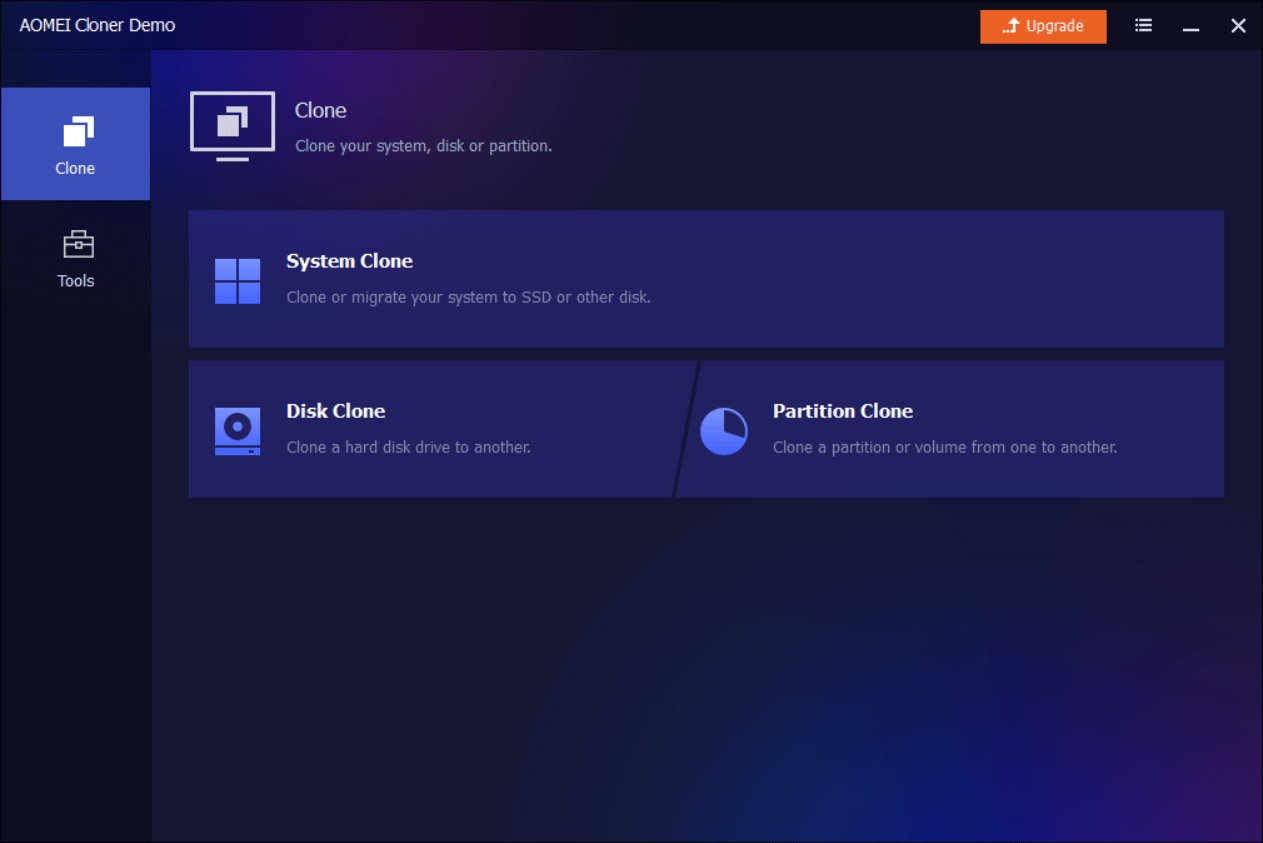
#7. AOMEI Cloner (Versatile Migration Solution)
AOMEI Cloner is a professional HDD and SSD cloning software for Windows PCs and Servers.
Functioning as a versatile migration solution, it delivers different cloning methods and advanced settings to adapt to various upgrade scenarios. For example, upgrade HDDs to SSDs for fast speeds, clone an old drive to a new one for replacement, and set up multiple computers.
Key Features of AOMEI Cloner
- Cloning options: Supports a variety of cloning options, including system cloning, system migration, and partition cloning.
- Smart cloning: Supports sector-by-sector cloning and helps clone a larger hard drive to a smaller SSD.
- Partition edit: Offers an option to edit the partitions on the target disk and converts the target disk from GPT to MBR.
- SSD optimization: Uses 4K alignment to improve SSD.
- WinPE cloning: Supportscloning disks and partitions in WinPE when the system fails to start.
Pros and Cons
| Pros | Cons |
| 1. Comprehensive cloning functionality. 2. Wizard-based interface. 3. SSD alignment support. 4. WinPE-based cloning for system recovery. | 1. Advertised as a free edition, but requiring a license to unlock all cloning features. 2. No option to copy used sectors. |
Why Do We Recommend It
We recommend AOMEI Cloner because of its user-friendly interface and versatile cloning capabilities. It helps seamlessly migrate or clone an HDD to an SSD, even if the SSD is smaller, as it can resize the disk layout.
This makes it a reliable choice for hard drive upgrades and system migrations.
Available Editions
AOMEI Cloner Professional (for 1 computer) and Technician (for 99 computers) are used for home users, IT technicians, and small businesses. They are compatible with:
- Windows 11,10, 8, 8.1, 7, XP, and Vista.
- Windows Server 2003, 2008 (R2), 2012 (R2), 2016, 2019, Windows Small Business Server 2011, and Server 2022.
Personal Experience with AOMEI Cloner
It is simple to download and install AOMEI Cloner. After launching, the clear and intuitive layout makes it easy to navigate.
However, after I select the source drive and target drive and click Start Clone, the software requires me to get the full version to activate all features. I attempt to try a system migration, disk cloning, and partition cloning, but a license is always required.
The official website claims that AOMEI Cloner is free, but all features are behind a paywall.
#8. Clonezilla (Open-Source Industrial Standard)
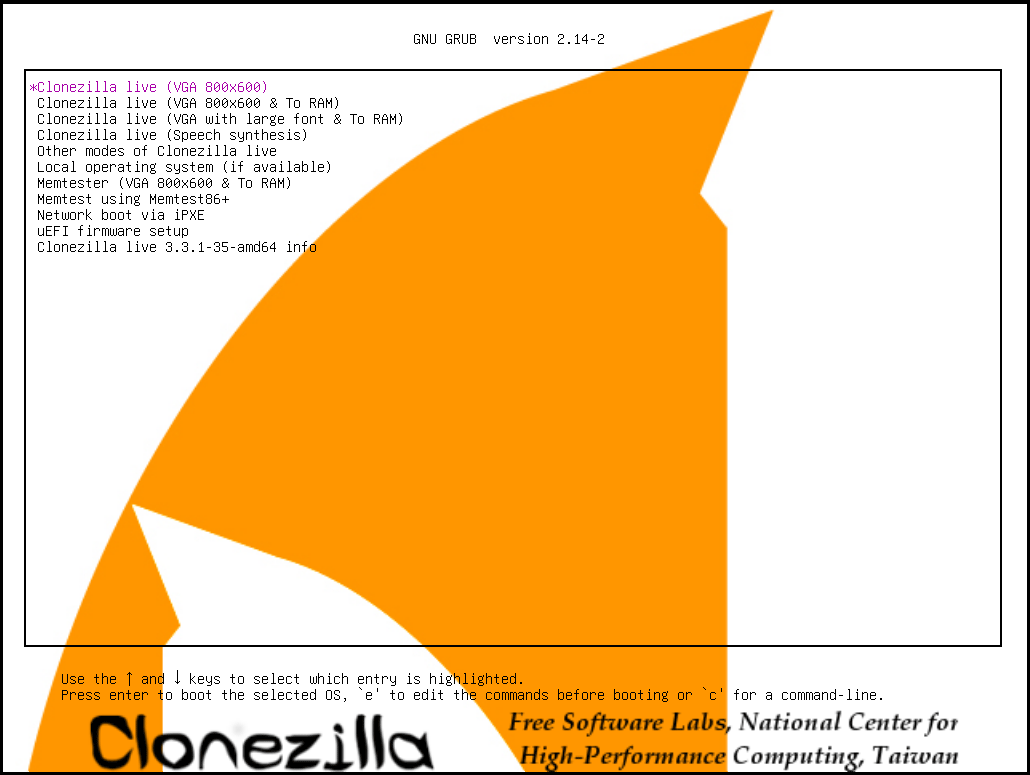
Developed as an open-source industrial standard, Clonezilla is designed for disk imaging, disk cloning, and bare-metal backup and recovery. It can act as a bootable live system, running from a USB flash drive, CD/DVD, or PXE (Preboot Execution Environment).
This free SSD cloning software provides features tailored for IT professionals and technicians. It can perform mass system deployment and hard drive upgrades, without interfering with the system.
Key Features of Clonezilla
- Disk/partition cloning: Supports disk-to-disk and partition-to-partition cloning, suitable for full disk or selective data migration.
- Mass cloning: Supports multicast in the Server Edition, allowing cloning on 40+ computers simultaneously, which is useful for large-scale deployment.
- File system support: Works with a wide range of file systems across Linux, Windows, and macOS; Performs sector-by-sector cloning for unsupported file systems.
- MBR/GPT support: Compatible with both MBR and GPT disks, supporting BIOS and UEFI systems.
- Unattended mode: Supports automated cloning with customizable boot parameters, performing, suitable for advanced users.
Pros and Cons
| Pros | Cons |
| 1. Completely free and open-source. 2. Broad compatibility (various file systems and operating systems) . 3. Massive deployment. | 1. Complex for non-technical users due to the text-based and non-intuitive interface. 2. No live cloning. 3. Limited features. 4. Error-prone user interface, easily resulting in data loss if selecting an incorrect drive. |
Why Do We Recommend It
Clonezilla remains a prominent choice for open-source disk cloning because it is 100% free and can work on different operating systems, including Linux, macOS, and Windows.
It is particularly suitable for IT professionals who need large-scale deployment and bare-metal backup.
If you are an individual user, clone a hard drive to an SSD by following the step-by-step guide of Clonezilla HDD to SSD.
Available Editions
There are three available types of Clonezilla:
- Clonezilla Live: Suitable for single-machine backup, recovery, and cloning.
- Clonezilla lite server/SE: Suitable for large-scale cloning and deployment.
Personal Experience with Clonezilla
Getting started with Clonezilla requires additional setup steps, including creating a bootable USB drive using Rufus and adjusting the boot order in BIOS/UEFI.
The interface is text-based, which may be less intuitive for beginners. The cloning process can be completed by following the on-screen instructions.
Overall, Clonezilla is reliable, but its setup process and interface may require some learning time.
#9. Rescuezilla (Graphical Live-Boot Cloner)
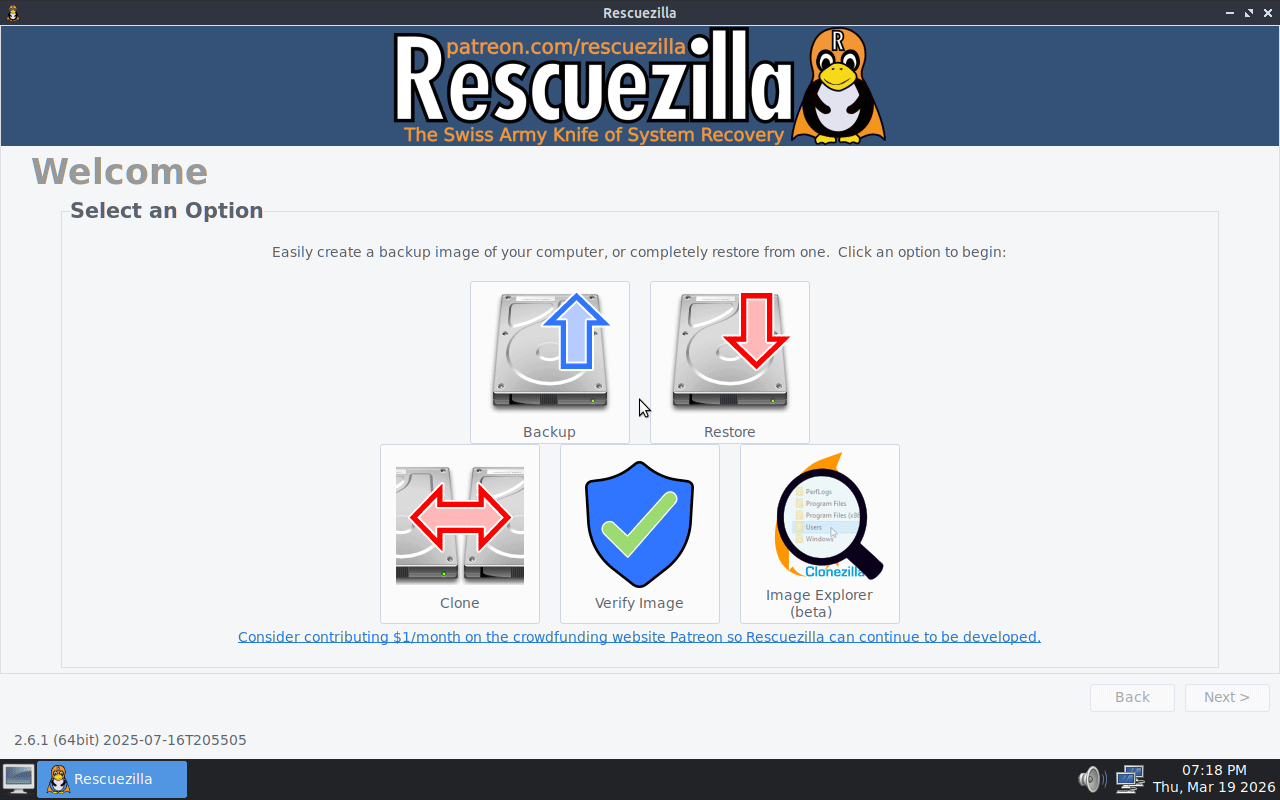
Rescuezilla is another free, open-source disk imaging and cloning utility that is compatible with Clonezilla image formats, providing a graphical user interface.
By booting from a USB-based live system, you can perform drive backup and disk cloning independently of the installed operating system.

Key Features of Rescuezilla
- Device-to-device cloning: Supports cloning a disk to another one, with the option to select specific partitions during the process. This allows both full disk cloning and selective partition migration.
- Supported systems: Compatible with Windows, Linux, and macOS environments via a bootable USB.
Pros and Cons
| Pros | Cons |
| 1. Fully free and open-source. 2. Compatible with Windows, Linux, and macOS. 3. Menu-driven interface. | 1. No specific options for system migration, disk clone, and partition copy. 2. No support for cloning a larger drive to a smaller drive. 3. Limited customization during the cloning process. |
Why Do We Recommend It
Compared to Clonezilla, Rescuezilla offers a simple point-and-click graphical interface, making it much more approachable.
It is independent of the system, running from a bootable USB stick to help easily clone a hard drive.
User Suitability
Rescuezilla is suitable for various use cases, including:
- Beginners.
- IT technicians.
- System administrators.
- Cross-platform users.
Personal Experience with Rescuezilla
The official ISO can be downloaded quickly and converted into a bootable USB drive using special tools like Rufus.
After booting from the USB, the tool supports multiple languages before launching the interface.
During cloning, Rescuezilla does not provide explicit options for system migration, disk, or partition cloning, but I can manually select source and target drives.
Identifying individual partitions can be challenging, which may require extra attention when performing system migrations.
#10. MultiDrive (Direct Disk-to-Disk Engine)
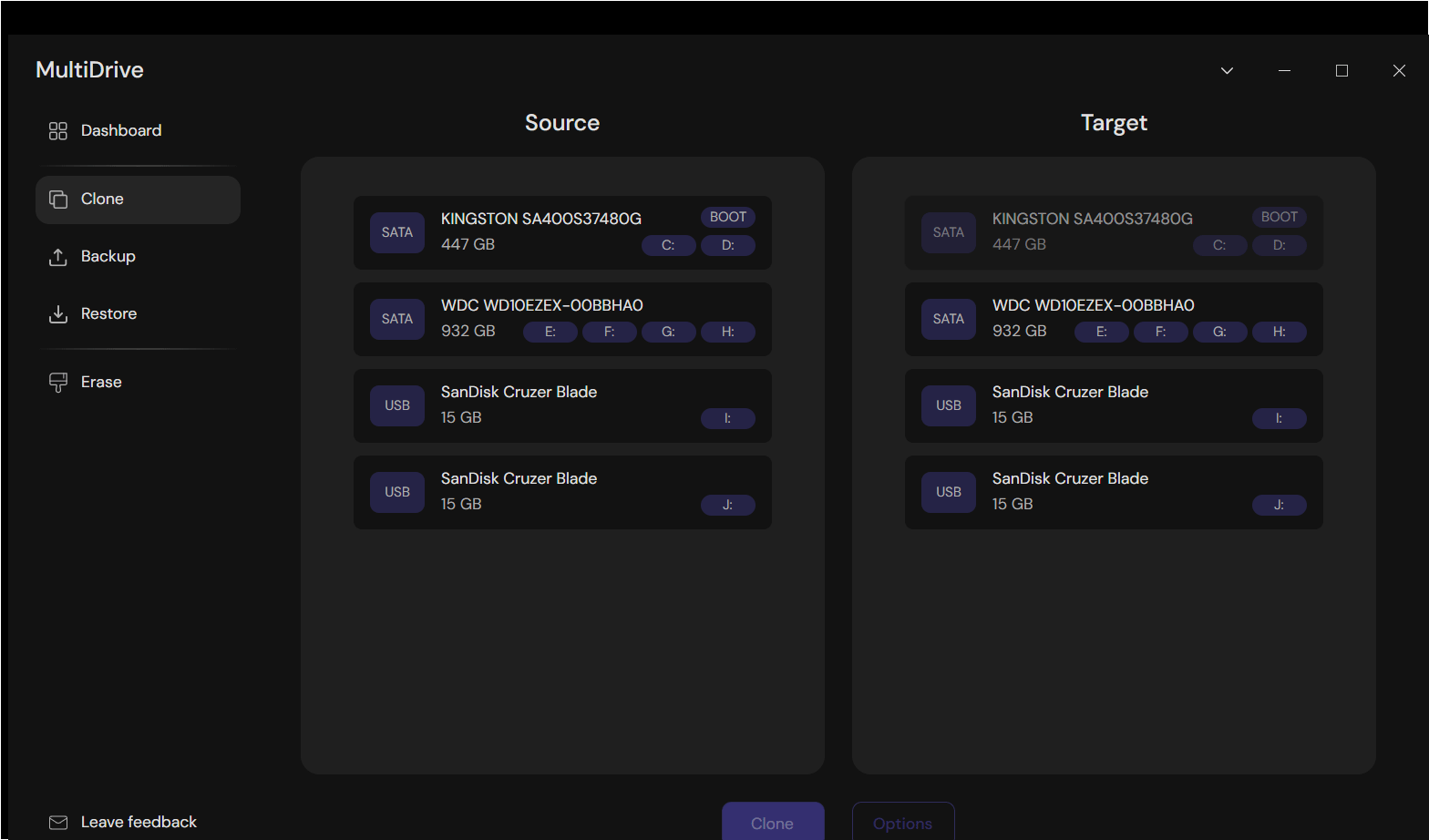
With respect to free SSD cloning software, MultiDrive is recommended by some users. It is a disk management toolkit designed for Windows backup, recovery, wiping, and cloning.
Operating as a direct disk-to-disk engine, the cloning process can be completed in a few simple steps. No matter which types of drives you are cloning, the tool can transfer all files and folders.
Key Features of MultiDrive
- Disk cloning: Clones an HDD to an SSD or migrates the entire system disk to another disk; Supports pausing and resuming the cloning task, and full bit-for-bit drive cloning.
- Parallel tasks: Runs multiple cloning tasks at the same time from a single dashboard, saving much time.
- Failing drive support: Correctly clones the disk even if a drive has errors and bad sectors by following a rule: sending a command to reset the drive’s controller and trying to read the data block; skipping the bad one and proceeds with cloning the next block once failed, while using zeros to fill the corresponding 256KB block on the target drive.
- Command-line support: Performs mass disk cloning using a free command-line tool.
Pros and Cons
| Pros | Cons |
| 1. True freeware. 2. Simple, intuitive design. 3. Parallel task execution. 4. Cloning failing drives. 5. CLI (command-line interface) support for advanced users. 6. An available portable version. | 1. Lack of advanced features, such as partition resizing, intelligent copy, 4K alignment, etc. 2. Unable to clone a source drive to multiple target drives in parallel. 3. No options for partition copy and system migration, requiring you to specify a sector range to copy. |
Why Do We Recommend It
MultiDrive is a frequently cited solution for HDD to SSD cloning since it is truly free and user-friendly, with no hidden costs. Importantly, it offers a portable version to run from a USB drive, without installation.
Additionally, its features, such as handling failing drives and pausing & resuming cloning tasks, make this software popular.
Available Editions
MultiDrive offers a free edition:
- Suitable for both home users and IT professionals.
- Compatible with Windows 11/10 and Windows Server 2025/2022/2019 (64-bit).
Personal Experience with MultiDrive
After downloading and launching MultiDrive, cloning a disk is straightforward, requiring minimal configuration.
This tool can effectively handle the transfer of all data, making it an ideal choice for those seeking a simple and reliable cloning solution.
However, the process requires manual specification of source drive ranges when performing partition-specific or system-only cloning. This may add the possibility of configuration errors compared to full-disk cloning.
#11. HDClone (High-Performance Duplicator)
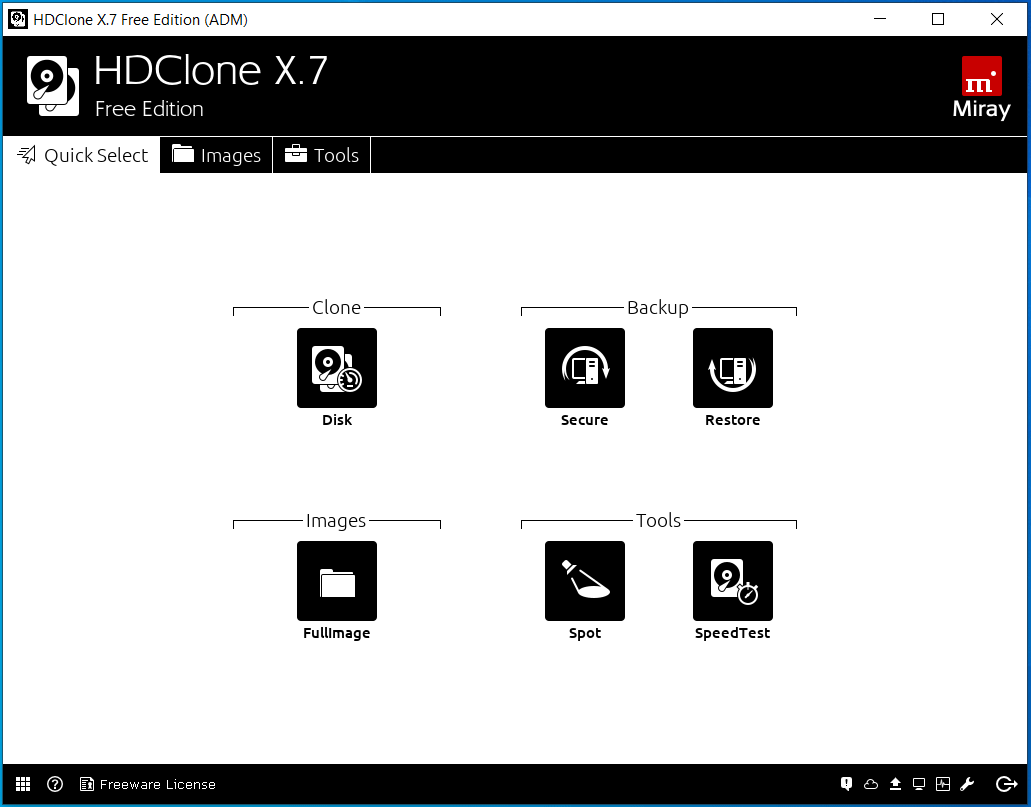
HDClone is a versatile tool, helping create file images and copies of various storage devices, such as HDDs, SSDs, and USB drives.
Engineered as a high-performance duplication utility, it works independently of operating system, file system, and partition scheme. This makes it a practical solution for migrating systems, performing backups, and rescuing data from defective media.
HDClone is available in various editions. The free edition supports basic copying and imaging functionality. Whereas its several premium editions enhance the core capabilities with fast speed and greater hardware compatibility.
Key Features of HDClone
- Various copy modes: Supports disk copy, partition copy, SmartCopy (copies only the used data blocks of supported file systems), BitCopy (copies every single sector), and PartitionSelect (selectively copies individual partitions from a source drive).
- Boot setup: Creates boot media to start the software even without an installed operating system for disk cloning; Offers several boot modes are offered, including BIOS, UEFI + SecureBoot; UEFI + SecureBoot only; BIOS, UEFI; UEFI only; BIOS only; and Legacy BIOS only.
- Dynamic disk copy: Clones Windows dynamic disks to regular disks and RAID systems.
- HotCopy: Performs a disk cloning while Windows is actively running.
- FastCopy: Accelerates the cloning, imaging, and backup processes, delivering optimum performance on SSDs.
- 4K compatibility and 1M partition alignment: Maximizes the performance and lifetime of SSDs during cloning.
Pros and Cons
| Pros | Cons |
| 1. Flexible copy modes, such as SmartCopy and BitCopy. 2. OS independent and portable. 3. Supports dynamic disk copy. 4. Offers advanced features, such as 4K & 1M alignment, automatic resizing, UEFI and GPT support, and FastCopy. | 1. Free edition is limited. 2. User interface is less intuitive. 3. Paid editions are relatively expensive compared to competitors. |
Why Do We Recommend It
HDClone is popular due to its advanced copy features, including FastCopy, BitCopy, and SmartCopy, OS independence, hardware support, and broad compatibility.
In handling complex cloning tasks, HDClone is considered a robust and wise choice.
Available Editions
HDClone is tailored to different users, including individuals, home users, and businesses.
- Free/Basic/Standard/Advanced: Works in Windows 11/10/8.1/8/7/Vista/XP, best for individuals and home users.
- Professional/Enterprise: Compatible with Windows 11/10/8.1/8/7/Vista/XP and Windows Server 2016/2012 R2/2012/2008 R2/2008/2003. Professional is used for daily and professional use, while Enterprise is perfect for production environments.
- Professional Portable: Used for professional use on arbitrary PCs, targeting flexible use by service providers and IT departments.
Personal Experience with HDClone
The installer of HDClone (Windows Setup) is 100MB, which takes longer time to download and install compared to many competitors.
After launching its free edition, there is only one option available for cloning an entire hard drive. Beyond 4K and 1M alignment, the utility lacks advanced partition resizing options during cloning.
The features are limited in the free edition. To unlock partition copy, SmartCopy, and other advanced features, it is required to upgrade to Standard Edition or above.
Conclusion
Among the 11 best SSD cloning software, each has its strengths and limitations.
Macrium Reflect, MiniTool Partition Wizard, DiskGenius, MiniTool ShadowMaker, Hasleo Disk Clone, MultiDrive, and HDClone are optimized for beginners.
Clonezilla and Rescuezilla are free, open-source, suitable for advanced users.
If budget permits, EaseUS Disk Copy and AOMEI Cloner can be viable paid alternatives.
SSD Cloning Software FAQ
For details of NVMe cloning, refer to the Cloning NVMe M.2 Drive from M.2 or SATA SSD guide.
About The Author

Position: Columnist
Vera is an editor of the MiniTool Team since 2016 who has more than 7 years’ writing experiences in the field of technical articles. Her articles mainly focus on disk & partition management, PC data recovery, video conversion, as well as PC backup & restore, helping users to solve some errors and issues when using their computers. In her spare times, she likes shopping, playing games and reading some articles.
User Comments :